


As a shop owner, you rarely think about the sitemap. It lives at /sitemap.xml, Google fetches it, and that's usually the end of it. Things only get tricky when a newly created category doesn't show up in Google Search. Or when hreflang causes problems in a multilingual shop.
In this article, we've put together what a sitemap actually does. And how our plugin “Google Sitemap Professional” helps you output a clean sitemap.
The sitemap as a map – but for machines
The most common comparison for a sitemap is a map, and it's a pretty good fit. A sitemap is a file that lists the addresses of your pages for a search engine. It tells Google's crawler where the products are and where the categories are. All in one place, so the crawler doesn't have to work its way through every single link first.
It's important to know that a sitemap is a recommendation, not an instruction. Google reads it as a hint about which pages exist at all and how important you consider them. Whether a page is then indexed, and when, is still decided by the search engine itself. So indexing is not guaranteed. But you do make sure that the search engine can find and classify your pages properly.
Technically, it's an XML file. Each entry has a URL and a few optional details: when the page was last modified, how often the content is likely to change, and what its priority is. These details are exactly the levers that the configuration of our plugin is all about.
Why one file often isn't enough
For a small shop with a few hundred pages, things are straightforward. It gets interesting with large catalogs. According to the common standard, a single sitemap file may contain a maximum of 50,000 URLs. If you have more products, you need several files held together by a parent file. This parent file is called a sitemap index. It doesn't contain any product addresses itself, but only points to the individual sub-files.
Shopware has built-in sitemap generation, and to be honest, it's sufficient for many shops. However, as soon as multiple languages, very large amounts of data, or the need to control individual content specifically come into play, the Shopware standard reaches its limits. This is exactly where our plugin “Google Sitemap Professional” comes in. Let's look at what you can change with the plugin by examining the points that most often cause problems in practice.
Four places where things go wrong in practice
1. Including the right content – and leaving out the wrong content
Not every page of your shop belongs in the sitemap. A legal notice page doesn't need to be reported with high priority and daily updates, whereas a popular blog post is a different story. With Google Sitemap Professional, you can define separately for each content type whether it is included in the sitemap at all, what priority it gets, and how often the content is likely to change. This applies to the homepage, categories, products, shop pages, landing pages and blog posts.
You can set these values globally per content type. For individual products, categories or landing pages, you can deviate from this, with each individual record initially inheriting the global setting by default. So you only need to adjust the cases where the global default doesn't fit.
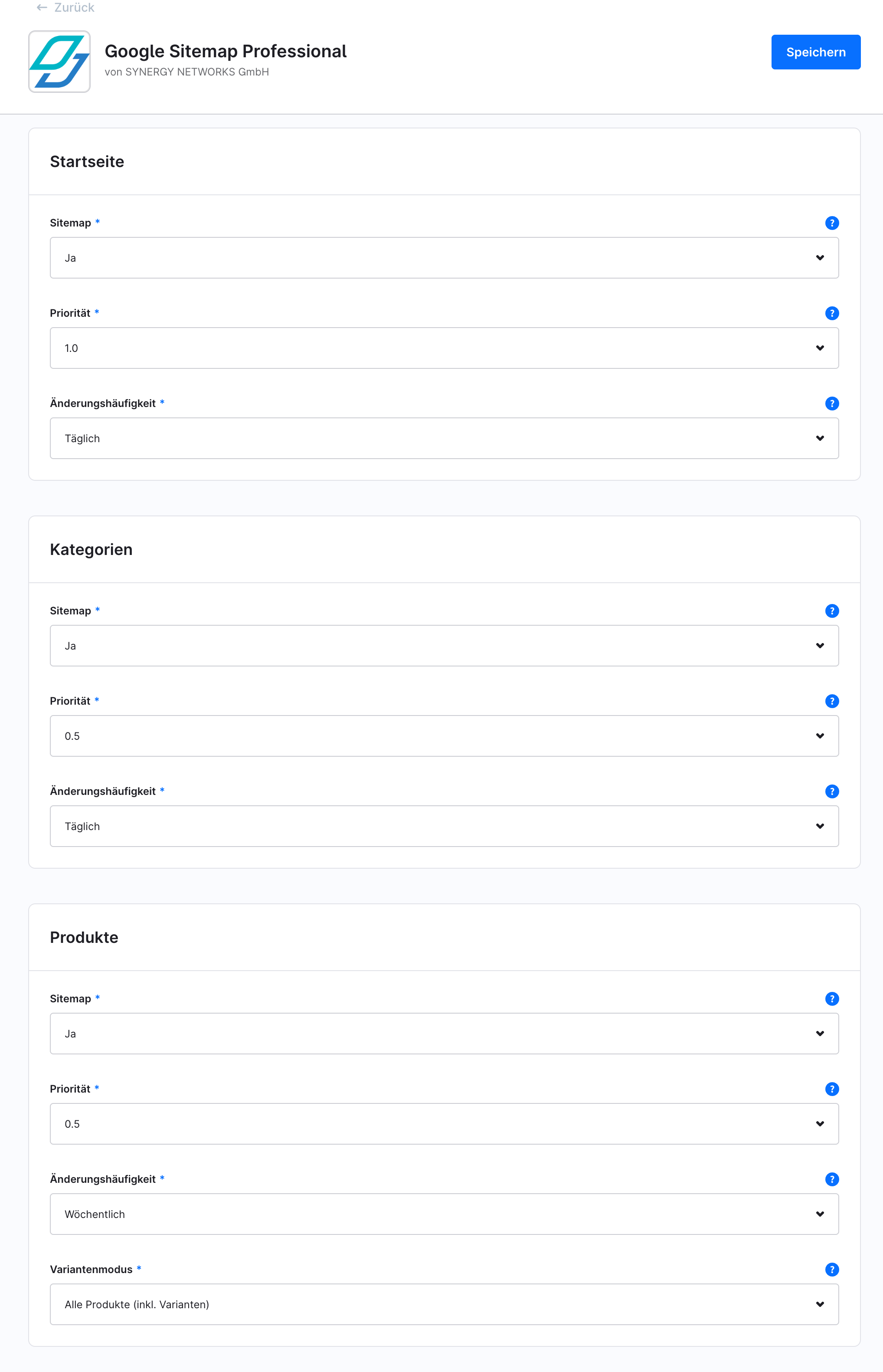
For each content type, you define whether it is included in the sitemap, and with what priority and change frequency.
2. Product variants: one URL or many?
A classic issue with large catalogs is product variants. If a product comes in twenty colors and five sizes, you quickly end up with a hundred variants. That means a hundred URLs for a single product. Whether you want that depends heavily on the shop. Some owners want to see each variant individually in search results. Others prefer to concentrate the strength on the URL of the parent product instead of spreading it across many addresses.
With our plugin, you have complete freedom of choice here. Using the variant mode in the configuration, you choose between “All products including variants” or “One URL per product”. The second option noticeably reduces the number of URLs and is a good choice if the variants shouldn't appear individually in search results.
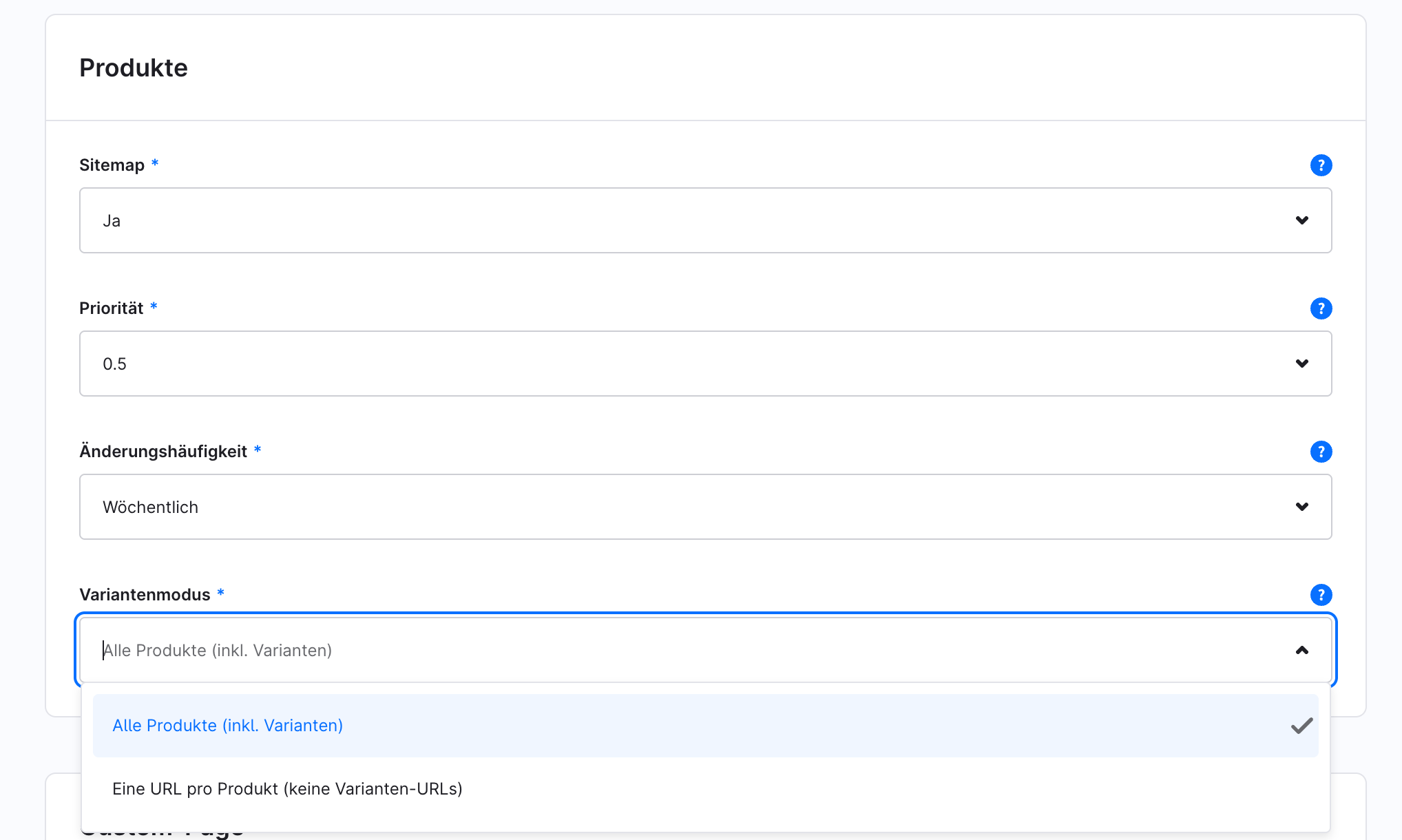
The variant mode determines whether each variant gets its own URL or only the parent product.
3. Multilingualism and hreflang
As soon as a shop serves multiple languages or countries, hreflang comes into play. This is a hint in the source code that tells a search engine which language version belongs to which region. According to Shopware, the hreflang attribute serves to clearly assign content to a language. If it is set correctly, Google shows users the appropriate language version. If it is set incorrectly, the versions compete against each other.
Google Sitemap Professional makes hreflang child's play: sales channels can be linked, you define a default language and a so-called x-default, and you can assign different language and region codes for individual domains. One example is de-AT if a domain is meant to serve Austria. On top of that, you can control the language switcher, including a custom order and custom country flags. Over 250 flags are already included in the plugin. So nothing stands in the way of your shop's international expansion.
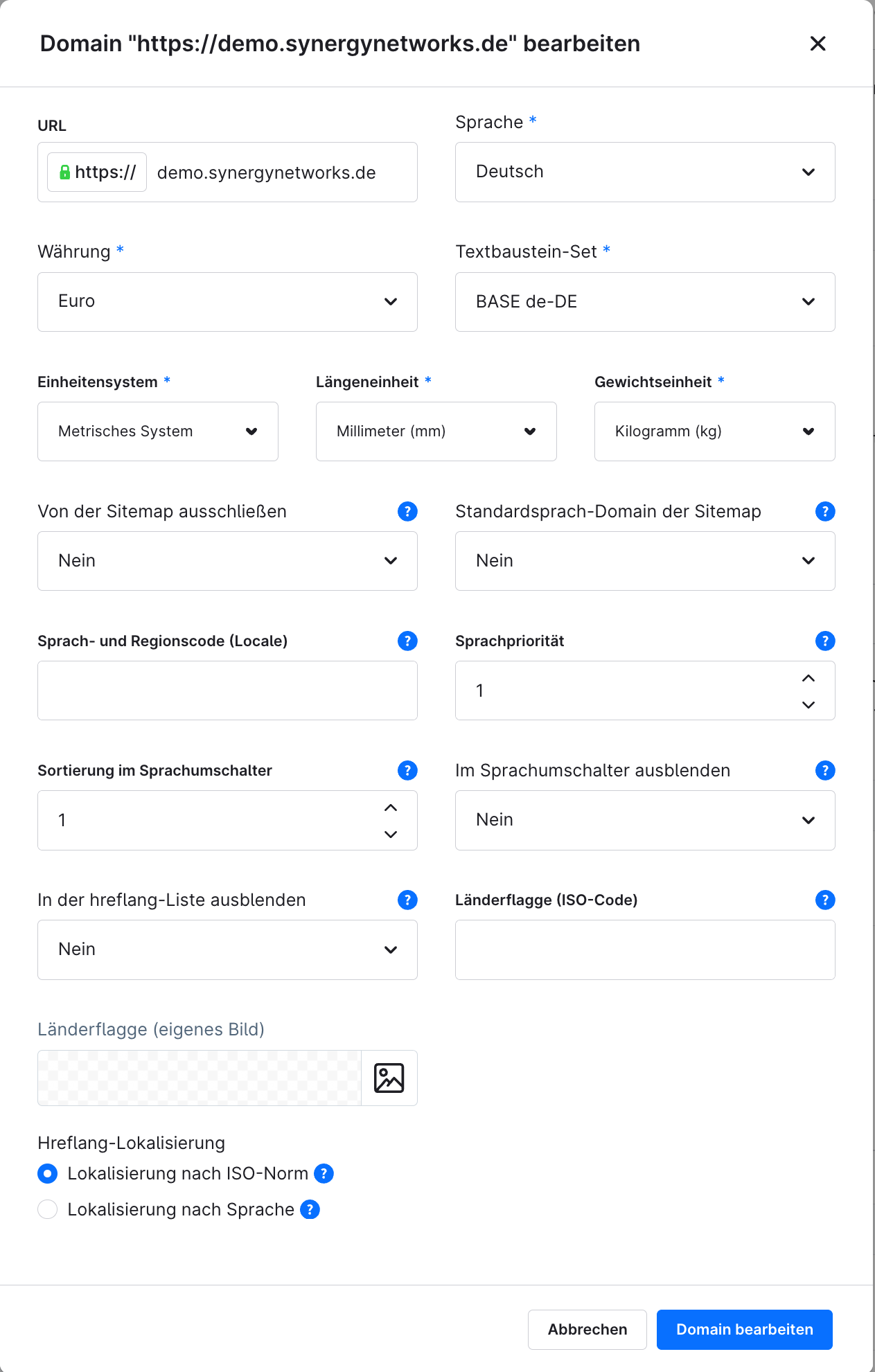
For each domain, you control the locale, x-default, the order in the language switcher and custom country flags.
4. When and how the sitemap is generated
A sitemap isn't a one-off document; it has to stay up to date. There are two basic approaches here. With dynamic output, the sitemap is regenerated every time it is requested. That's convenient for small to medium-sized shops. With very large catalogs, however, this can take a while, which is why there is static output: the file is generated once and then delivered without being recalculated on every request.
You also decide yourself via the plugin when the update runs: manually, at regular intervals via a scheduled task, or live. If you want more precise control, you can also trigger the generation via a console command and integrate it into your own cron job. For owners of large shops, this is probably the most practical approach, because sitemap generation can then be scheduled for quiet periods.
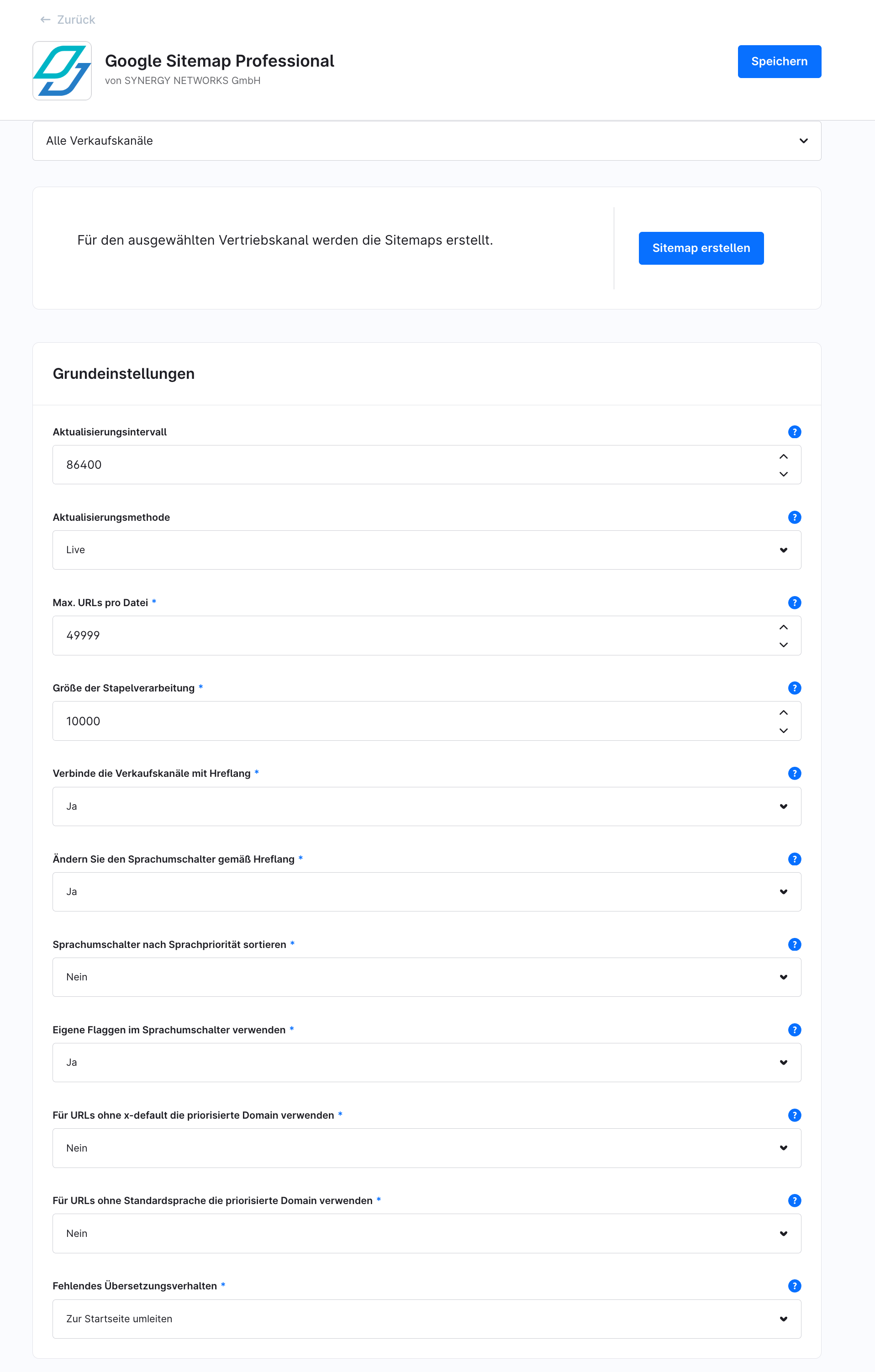
In the basic settings, you choose the update method and interval as well as the maximum number of URLs per file.
What you should actually do
If you take one thing away from this article, let it be this: a sitemap isn't something that simply runs itself and does the right thing in the background. It's an effective lever and works best when its configuration suits your shop. So check whether it really only contains the pages you want to see in search results. Keep an eye on your variants. And for multilingual shops, it's definitely worth taking a closer look at hreflang, especially since this is where most errors occur.
If you hit the limits of the standard sitemap, our plugin “Google Sitemap Professional” will definitely help you further. We have provided detailed configuration instructions in our documentation. And if you're unsure whether your sitemap is set up properly, we as a certified Shopware partner are happy to take a look at it together with you.

Comments
No comments yet.
Write a comment